yourdigihelp.com

Digital Marketing

Digital Marketing

Google AdSense April 20 Update

Google AdSense April 20 Update: The Upcoming Change Every Publisher Needs to Know About 📅 Published: April 10, 2026 ⏱ 10 min read 👤 For: Google AdSense April 20 Update , Google AdSense Update , Google AdSense Something big is happening in Google AdSense on April 20, 2026. And honestly? Most publishers don’t even know it’s coming.If you run a website, rely on AdSense for income, and haven’t checked your Google AdSense dashboard recently  this is your wake-up call. A two-phase experiment is about to go live that could quietly reshape which ad partners bid on your inventory, shift your CPM rates, and in some cases, affect your GDPR compliance. All without a single notification popping up unless you know where to look.Let’s talk about what’s actually happening, why it matters more than the average platform tweak, and exactly what you should do before April 20 arrives. Checkout The Below Blog For Adsense Aprroval Why Google AdSense Approval Keeps Rejecting You (And How I Finally Got Approved) The Google AdSense Update That’s Actually Happening on April 20, 2026 Here’s the core of it. Google officially announced on April 6, 2026 that it’s launching an experiment with an updated set of commonly used ad technology partners (ATPs) the default list of companies that are automatically permitted to serve and measure ads on your site. The experiment starts on or after April 20, 2026. If the data shows it’s good for publishers, the list gets permanently updated on or after June 5, 2026. That’s the upcoming change in Google AdSense everyone’s searching for right now. Two dates. Two phases. And the window between them April 20 to June 5 is where Google decides your fate as a bystander or an active participant. What Are “Ad Technology Partners” and Why Do They Matter? This is where most guides lose people, so let me make it dead simple. When someone visits your website and an ad loads, it’s not just Google sitting in the background. There’s an entire ecosystem of ad technology companies demand-side platforms, data providers, measurement vendors all working together to serve that ad and track its performance. These are your ad technology partners (ATPs). The “commonly used” list is Google’s default selection of ATPs. If you’ve never manually managed your partner settings, your site is already using this default list. As of April 6, 2026, that list contains 199 providers. Now Google wants to update that list. The goal, according to their announcement, is to reflect the partners that are “most actively working with publishers globally”  determined by real programmatic demand data while ensuring every partner meets Google’s privacy standards. What that means in plain English: some partners may be added. Some may be removed. And whichever partners are on that list directly determines who can bid on your ad inventory. More relevant bidders = more competition = higher CPMs. Fewer or lower-quality bidders = the opposite. Why This Google AdSense Update Is a Two-Phase Experiment- Not a Straight Rollout Here’s something worth paying close attention to, because it’s actually pretty unusual. Google isn’t just flipping a switch. They’re running a controlled experiment first. Starting April 20, a subset of publishers will encounter the modified partner list. Google watches what happens  CPM rates, fill rates, publisher revenue, user experience signals  and then decides whether to make it permanent by June 5. If the data doesn’t support it, they can pull back. This phased approach mirrors what Google did with a prior ATP list update cycle in June 2025. It’s becoming their standard playbook for changes that touch revenue and compliance simultaneously. The practical implication? You might be in the experiment, or you might not be  you won’t know until you check your account. And if you’re in it, your commonly used ATP list could look different from April 20 onward, even without you touching anything. How This Affects Your Google AdSense Banner Ads and Ad Revenue Let’s get concrete. What does an ATP list change actually do to the ads on your pages? If new, high-quality partners are added: More advertisers compete for your inventory. CPM goes up. Your revenue per thousand impressions improves. This is the best-case scenario Google is hoping to prove with the experiment. If underperforming or non-compliant partners are removed: Short-term, you might see a slight dip in fill rates or CPM. Longer-term, cleaner inventory tends to attract better advertisers so this is actually healthy. If you’re in a GDPR-relevant market (EEA, UK, Switzerland): The stakes are higher. The commonly used ATP list acts as a consent gatekeeper in these regions. Partners on the list automatically receive user consent signals. Partners removed from it lose that automatic consent which means they can no longer serve or measure personalized ads on your site without explicit individual consent being re-obtained. That’s a compliance implication, not just a revenue one. The April 16 Change You Also Need to Know About (But It’s Not the Main Event) There’s actually a second Google AdSense update that lands just before April 20  on April 16, 2026  and it directly affects your google adsense auto ads setup. Google is replacing the old “ad load slider” in Auto ads with new advanced settings for banner ads. The slider  that blunt drag-control that let you pick between fewer or more ads  is gone. In its place, you get three granular controls: Maximum number of ads  a specific number cap for in-page banner ads Minimum distance between ads precise spacing control between placements Find more ad placements on article pages a toggle for additional auto-placement discovery If you were using the slider, Google will migrate your settings automatically  but it’s an approximation, not an exact copy. You should log in after April 16 and verify the new values look right for your pages. If you were already using “fine-tune your ads,” your settings carry over cleanly. This is a meaningful upgrade for publishers who care about page aesthetics and user experience. But in terms of what’s upcoming

Digital Marketing

Screaming Frog Tutorial for Beginners

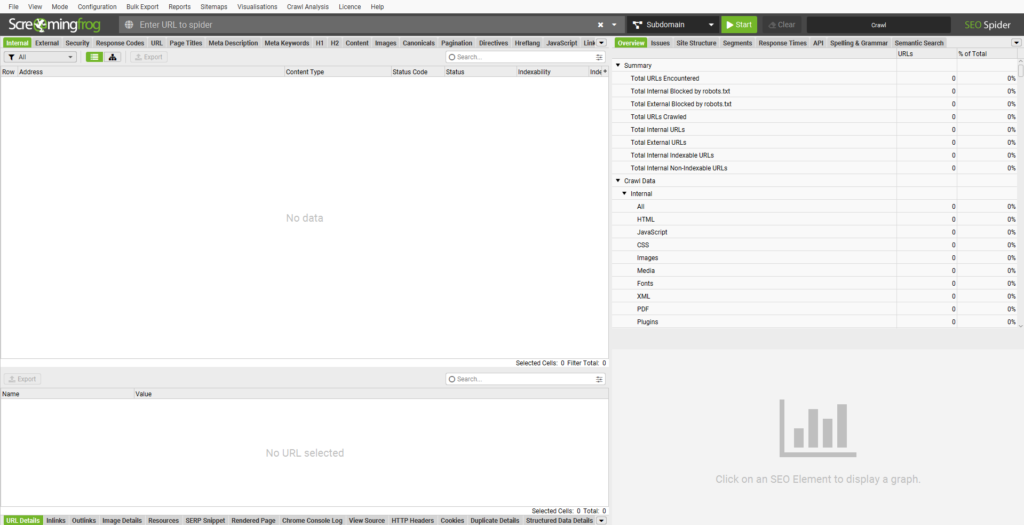
Screaming Frog Tutorial for Beginners: The Ultimate Step-by-Step SEO Spider Guide (2026) 📅 Published: April 7, 2026 ⏱ 14 min read 👤 For: screaming frog, screaming frog seo, screaming frog tutorial, Screaming frog tutorial for beginners If you’ve been doing SEO for more than five minutes, someone’s probably told you to “just run a Screaming Frog crawl.” And if you’re a beginner, you probably smiled, nodded, and then quietly Googled “what even is Screaming Frog?” Don’t worry. We’ve all been there. Screaming Frog is one of the most powerful SEO tools on the planet — and honestly, once you get past the slightly chaotic interface, it becomes your best friend. This complete Screaming Frog tutorial will walk you through everything: what it is, how to set it up, how to use every major feature, and how to actually turn your crawl data into real SEO wins. Whether you’re a small business owner, a digital marketing newbie, or an SEO professional brushing up your skills — this guide is for you. Let’s get into it. What Is Screaming Frog? (And Why Should You Care?) Screaming Frog SEO Spider is a desktop-based website crawler developed by a UK-based SEO agency — also called Screaming Frog. The tool works by crawling your website URL by URL, mimicking how Google’s bot reads your site, and then dumping all the technical SEO data into a clean, sortable interface. Think of it like an X-ray for your website. In just minutes, you can see: Broken links (404 errors) Missing or duplicate page titles and meta descriptions Redirect chains Thin content pages Missing H1 tags Crawlability issues And a lot more As of 2026, Screaming Frog SEO Spider remains one of the most-used tools among SEO professionals worldwide. According to industry surveys, over 60% of mid-to-senior level SEOs use it regularly in their workflows. The free version lets you crawl up to 500 URLs — perfect for small sites. The paid licence (around £259/year) removes that limit and unlocks advanced features like Google Analytics integration, PageSpeed data, and custom extraction. How to Download and Install Screaming Frog SEO Spider Before we dive into the tutorial, let’s get you set up. Step 1: Download the Tool Go to screamingfrog.co.uk/seo-spider and hit the big green Download button. It’s available for Windows, Mac, and Ubuntu. Step 2: Install It Run the installer and follow the standard setup steps — it’s nothing complicated. The application is built on Java, so it might prompt you to install a Java Runtime Environment if you don’t have one. Step 3: Launch It Open Screaming Frog. You’ll see the main interface with a URL bar at the top, several tabs, and a bunch of columns. Don’t panic. We’ll walk through all of it. A Quick Tour of the Screaming Frog Interface Before you run your first crawl, let’s make sure you know what you’re looking at. The interface has five main areas: The Top Navigation Bar At the very top, you’ll see menu options: File, View, Mode, Configuration, Bulk Export, Reports, Sitemaps, Visualisations, Crawl Analysis, Licence, Help. Each of these unlocks a different level of functionality — and we’ll cover the key ones throughout this guide. The URL Bar This is the big input box in the center-top of the screen. It says “Enter URL to spider.” This is where you type in the domain you want to crawl (e.g., https://www.yourwebsite.com). To the right of the URL bar, you’ll see a mode selector (defaulting to Subdomain) and a green Start button. The Left Tab Panel (Data Filters) On the left side, you’ll find the main data tabs: Internal, External, Security, Response Codes, URL, Page Titles, Meta Description, Meta Keywords, H1, H2, Content, Images, Canonicals, Pagination, Directives, Hreflang, JavaScript, Link. Each tab filters the crawl data by category. These are the tabs you’ll live in. The Right Panel (Overview & Analysis Tabs) On the right: Overview, Issues, Site Structure, Segments, Response Times, API, Spelling & Grammar, Semantic Search. The Issues tab is gold. It’s where Screaming Frog automatically flags problems for you. The Data Grid (Center) The big spreadsheet-like grid in the middle is where all your URL data lives. You can sort, filter, export — it’s your main workspace. Your First Crawl: Step-by-Step Alright, let’s actually crawl something. Step 1: Enter Your URL Type your website’s homepage URL into the “Enter URL to spider” box. Always include https:// — for example: https://www.example.com. Step 2: Choose Your Mode Click the dropdown next to the URL bar. You’ll see options: Spider — Standard mode. Crawls all URLs on the site. List — Upload a specific list of URLs to audit. SERP — Analyze metadata from SERP snippets. XML Sitemap — Crawl only URLs in your sitemap. Link — Crawl links from a specific URL. Google Analytics — (Paid) Crawl pages based on GA data. Subdomain — Crawls within a specific subdomain (default). For a full site audit, keep it on Spider mode. Step 3: Hit Start Click the green Start button. The tool will begin crawling your site — you’ll see URLs populating in the grid in real time. Smaller sites (under 500 pages) finish in seconds. Larger sites with thousands of pages can take minutes or hours depending on your connection speed and the crawl settings. Step 4: Wait for It to Finish You’ll see a progress bar in the bottom-right corner. When the crawl is complete, it’ll say “Finished.” Congratulations — you’ve just run your first crawl. Now let’s dig into what it all means. Understanding the Left-Side Tab Features in Detail This is where the real power lives. Let’s walk through each tab one by one. Internal Tab The Internal tab shows all internal URLs found during the crawl — pages, images, CSS files, JavaScript files, and more. By default, it shows “All” URL types. You can filter using the Filter dropdown on the left to show only HTML pages, images, PDFs, etc. What to look for here: Status codes (200 = OK,

Digital Marketing

Marblism Review 2026: Are AI Employees Worth It?

Marblism Review 2026 – YourDigiHelp AI Tools Review · By Ashutosh Bhatt · YourDigiHelp.com · Updated: April 2026 Marblism Review 2026: I Tested Their AI Employees for 4 Weeks – Here’s the Honest Verdict ⚡ Exclusive Reader Offer Get 10% Off Marblism — For Life. Automatically. Important: If you sign up through my affiliate link below, you will automatically receive 10% off your Marblism subscription for your entire lifetime — no coupon code needed. This discount is applied only when you sign up through partner links like mine. It stays in place forever, reducing your cost every single billing cycle. 🚀 Claim My 10% Lifetime Discount Direct Partner Link → ⚠️ Affiliate Disclosure: I earn a commission if you sign up through these links. This does not increase your cost — it actually saves you 10% permanently. I only recommend tools I’ve personally tested. Affiliate Disclosure: This post contains affiliate links. If you sign up through my links, I may earn a commission at no extra cost to you — and you’ll actually get a 10% lifetime discount automatically applied. I only recommend tools I genuinely use and believe in. Let me be straight with you from the jump. When I first heard about Marblism — a platform promising you a fully functional team of AI employees for less than the cost of a daily coffee — I rolled my eyes. Hard. I’ve been running YourDigiHelp for years, and I’ve seen dozens of “game-changing” AI tools come and go. Most of them are glorified chatbots wrapped in a shiny dashboard. But then a fellow solopreneur kept raving about it. So I signed up. Ran it for 4 solid weeks across my content business. And now I’m writing this Marblism review 2026 because the results genuinely surprised me. This isn’t a sponsored post. It’s not fluff. It’s what I actually experienced — the good, the frustrating, and the stuff that made me realise I’d been wasting hours every single week. Let’s get into it. 📋 Table of Contents What Is Marblism & How Do AI Employees Work? Meet the AI Team – EVA, SONNY, PENNY & More Marblism Pricing 2026 – Worth $24/month? Pros & Cons – Real-World Testing Marblism vs VAs, Agencies & Other AI Tools Who Is Marblism Best For in 2026? My 4-Week Hands-On Experience Get 10% Lifetime Discount (Exclusive Link) Frequently Asked Questions Final Verdict – Is It Worth It? What Is Marblism and How Do AI Employees Actually Work? Marblism is an AI business automation platform that gives you a team of specialised AI employees — not generic chatbot tools, but role-specific autonomous agents trained for distinct business functions. Think of it this way: instead of buying one Swiss Army knife that does ten things poorly, you’re hiring six specialists who each do one thing brilliantly. Here’s the core idea: You brief Marblism once about your business — your niche, tone, goals, audience Your AI team reads that brief and gets to work autonomously They check in only when they need your approval or input The whole thing runs daily, in the background, while you focus on the work that actually needs you The “Brain” Feature (2026 Update): Introduced in late 2025 and refined into 2026, “The Brain” is a shared knowledge base all your AI employees can access. So Penny (your blog writer) and Sonny (your social media manager) are no longer in silos — Sonny reads what Penny publishes and creates matching social content automatically. The team is actually coordinated now. This was the biggest complaint in earlier reviews, and it’s fixed. In plain terms: Marblism is like hiring a full-time digital team for a fraction of the price — and it works without you needing any technical skills or prompt-engineering wizardry. Marblism dashboard — your full AI employee team at a glance (2026) Meet the Marblism AI Team – EVA, SONNY, PENNY, STAN, RACHEL, LINDA & More This is where Marblism really differentiates itself. You’re not just getting “an AI tool” — you’re getting distinct personalities with specific roles. Here’s the full team as of 2026: 👩‍💼 EVA Executive Assistant Manages your Gmail or Outlook inbox, drafts replies in your tone, handles scheduling, and takes meeting notes — 24/7, without lifting a finger. Custom display name in meetings for brand seamlessness. ✓ 2+ hrs saved daily on email 📱 SONNY Community Manager Creates platform-specific content for Instagram, LinkedIn, Facebook, and X. In 2026, SONNY reads PENNY’s blog posts and auto-generates matching social captions — zero copy-paste required. ✓ Full weekly social calendar ✍️ PENNY SEO Blog Writer Researches keywords, writes SEO-optimised articles, and publishes directly to WordPress. The 2026 blog calendar view lets you plan content weeks ahead — like having a full editorial team. ✓ Google page 1 results for clients 🤝 STAN Lead Generation Finds prospects, sends personalised cold emails, and follows up automatically. The 2026 upgrade: improved CRM integration so STAN works with your existing systems, not around them. ✓ Warm leads while you sleep 📞 RACHEL Receptionist Handles inbound inquiries and customer support. Answers calls, responds to messages, and ensures clients get timely, professional replies — even at 11pm on a Friday. ✓ Never misses an inquiry ⚖️ LINDA Legal Assistant Reviews contracts and flags risky clauses in plain English. She’s your first line of legal defence — translating dense legalese into actionable business advice before it reaches a solicitor. ✓ Catches clauses you’d miss Meet the full Marblism AI team — six specialists, one platform (2026) Marblism Pricing 2026 – Is It Worth $24/month? One of the most common questions I get at YourDigiHelp is: “Is Marblism actually affordable?” Short answer: yes. Shockingly so. Plan Monthly Price What You Get Starter $24/month Core AI employees, unlimited tasks, basic integrations Growth Available on site Full team access, advanced integrations, priority support Agency/Team Available on site Multi-business management, team collaboration, custom branding What makes the pricing remarkable: Unlimited tasks — no per-action fees, no usage caps hiding in the

Digital Marketing

Wispr Flow Review 2026: Get Promo Code & Discount

Wispr Flow Review 2026: Is This AI Voice Dictation Tool 4× Faster Than Typing? ⭐ Review · 2026 · AI Tools Wispr Flow Review 2026: Is This AI Voice Dictation Tool 4× Faster Than Typing? (Honest Verdict) By Yourdigihelp  ·  Updated April 2026  ·  15 min read ★★★★★ 4.6 / 5  — After 3 weeks daily testing 🔗 Quick Access Links Best Wispr Flow offers — updated April 2026 🚀 14-Day Free Trial No credit card required 🎟️ Promo Code Exclusive discount code 💰 Get Discount Save ~20% annually 📋 Affiliate Disclosure: This post contains affiliate links. If you purchase through my links, I may earn a commission at no extra cost to you. I only recommend tools I genuinely use and believe in. 📑 Table of Contents What Is Wispr Flow? Key Features That Matter Pricing & Plans Pros & Cons Wispr Flow vs Competitors Who Is It Best For? 3 Weeks Hands-On Testing Get Discount / Free Trial Frequently Asked Questions Final Verdict What Is Wispr Flow? (Quick Overview) I tested Wispr Flow for three weeks straight — and I’m still using it every single day. If you’ve been hearing the buzz around Wispr Flow AI and wondering whether it’s just another overhyped productivity tool, you’ve come to the right place. Wispr Flow is an AI-powered voice dictation app that works across every app on your Mac, Windows PC, iPhone, and Android device. Unlike basic transcription tools that just spit out a wall of text, Wispr Flow uses large language model (LLM) technology to clean up your speech in real time — removing filler words (“um,” “uh,” “like”), fixing grammar, and even adapting the tone to match whatever app you’re typing in. The company behind it has raised $81 million in funding as of 2026, signaling serious investor confidence. And when you try it, you quickly understand why. The core promise: the average person speaks at 150–220 words per minute but types at just 40–50 wpm. Wispr Flow is designed to close that gap — letting you write emails, blog posts, code comments, Slack messages, and documents 3–4× faster using nothing but your voice. In this Wispr Flow review 2026, I’ll cover everything you need to know: features, pricing, real pros and cons, how it stacks up against competitors, and how to get the best discount (including the 14-day free trial). Let’s dive in. ✦ ✦ ✦ Key Features of Wispr Flow That Actually Matter in 2026 There are a lot of voice-to-text apps out there. What makes Wispr Flow AI different isn’t any single feature — it’s how all the pieces work together. Here’s a breakdown of what actually matters. ✂ Auto-Edits & Filler Removal This is the killer feature. When you speak into Wispr Flow, the AI doesn’t just transcribe — it edits. Say you mumble: “So, um, I wanted to, like, follow up on the, uh, proposal we discussed…” Wispr Flow outputs: “I wanted to follow up on the proposal we discussed.” The filler word removal is near-perfect in my testing — it catches “um,” “uh,” “like,” “you know,” “basically,” and even false starts. This alone saves me 10–15 minutes of editing per day. 📖 Personal Dictionary If you work in a niche industry — medicine, law, finance, tech — you know how badly standard speech recognition butchers terminology. Wispr Flow AI lets you train a personal dictionary with custom terms, names, brand names, and abbreviations. I added my blog URL, a few client names, and several tech terms. After that, accuracy on those words went from unreliable to near-perfect. ⚡ Snippet Library Think of this as text expansion, but voice-activated. You can set up short vocal triggers that expand into full blocks of text. Saying “insert bio” outputs your full 150-word author bio. Saying “legal disclaimer” inserts your standard legal block. For bloggers, consultants, and customer support teams, this feature alone can save hours per week. 🎨 App-Aware Tones & Styles This is genuinely impressive. Wispr Flow detects which app you’re typing in and adjusts its output accordingly. In Gmail: Polished, professional email tone. In Twitter/X: Concise, punchy, social-friendly. In Notion or Google Docs: Structured prose. In Slack: Casual, conversational. For content creators managing multiple channels, this is a serious workflow upgrade. 🌍 100+ Languages Wispr Flow AI supports transcription and dictation in over 100 languages, including Spanish, French, German, Portuguese, Japanese, Hindi, and Arabic. Accuracy across major world languages is excellent; less common languages are decent but not perfect. 🎙 Command Mode You can control your cursor and give editing commands with your voice — no keyboard needed. Commands like “select last sentence,” “delete that,” “go to end of paragraph,” and “undo” all work inside most apps. It’s not as deep as a full voice-control system like Talon or Dragon, but for everyday editing tasks it works without friction. 🔄 Cross-Platform Sync Wispr Flow works on macOS (10.15+), Windows (10/11), iOS (iPhone/iPad), and Android (expanding in 2026 with unlimited free usage during launch). Your dictionary, snippets, and settings sync across all devices via the cloud. Start a draft on iPhone, finish it on your MacBook — the handoff is seamless. 🔒 Privacy & HIPAA Compliance Wispr Flow is built with privacy as a core feature: it’s HIPAA-ready for healthcare use, audio is processed and then deleted (not stored long-term by default), and Enterprise plans include additional data residency and compliance controls. This is a meaningful differentiator over casual tools like Google Dictate. ✦ ✦ ✦ Wispr Flow Pricing & Plans – Is Pro Worth $12–15/month? Here’s the current Wispr Flow pricing breakdown as of 2026: Plan Monthly Price Annual Price Key Limits Free $0 $0 Limited minutes/month, basic features Pro Best Value $15/month ~$12/month Unlimited dictation, all features, personal dictionary, snippets Teams Custom Custom Shared workspace, admin controls, team analytics Enterprise Custom Custom HIPAA, SSO, SLA, dedicated support The Free plan is genuinely useful for light users who want to test the core experience — there are monthly usage caps, however. Pro

Digital Marketing

Why Google AdSense Keeps Rejecting You (Fix This)

Why Google AdSense Approval Keeps Rejecting You (And How I Finally Got Approved) 📅 Published: April 8, 2026 ⏱ 14 min read 👤 For: Google AdSense,AdSense Application, Google AdSense Approval Proces, AdSense Guide Let me be real with you.Getting Google AdSense approval feels like trying to crack a safe blindfolded. You submit your site, wait anxiously, and then rejection email. You fix things. Reapply. Rejected again. Sound familiar? Yeah. I’ve been there. Twice, actually. The crazy part is that most people getting rejected aren’t doing anything drastically wrong. They’re just missing a handful of specific things that Google’s review team is looking for  things that nobody tells you clearly upfront. After years of working with WordPress site owners, digital marketers, and content beginners, I’ve seen the same patterns repeat over and over. So in this guide, I’m going to break down exactly why you keep getting rejected, what the Google AdSense approval process actually looks like from the inside, how long Google AdSense takes to approve a website in 2026, and most importantly  how to get AdSense approval fast the right way. Let’s get into it. Checkout The Below Blog For Adsense Aprroval Google AdSense April 20 Update: The Upcoming Change Every Publisher Needs to Know About What the Google AdSense Approval Process Actually Looks Like Before we talk about why you’re getting rejected, you need to understand what the AdSense approval process is and what Google’s reviewers are actually doing. When you apply for AdSense, Google doesn’t just run an automated bot over your site and call it a day. There’s a two-stage review process: Stage 1 — Automatic system check: Google’s algorithms scan your site for obvious policy violations, thin content, missing pages, and technical issues. Stage 2 — Human review: Yes, actual people review your site against Google’s Publisher Policies and content guidelines. This is important. A human reviewer is looking at your site and asking one core question: “Would I feel comfortable showing ads from major brands on this website?” If the answer is even slightly uncertain, you get rejected. Here’s the thing a lot of beginners don’t realize — the Google AdSense approval criteria aren’t just about your content. They’re about your entire website experience: navigation, trust signals, content quality, user intent, and even your about page. How Long Does AdSense Take to Approve a Website? This is probably the question I get asked the most. And honestly, the honest answer is: it varies wildly. In 2026, the typical Google AdSense approval time for a new site is between 1 day and 2 weeks. Most people see a decision within 3–7 business days. But here’s what affects that timeline: Site age: Newer domains (under 3 months) get more scrutiny. Content volume: Sites with fewer than 15–20 solid posts take longer to evaluate. Niche sensitivity: Finance, health, and political content get slower, deeper reviews. Previous rejections: If you’ve been rejected before, reviewers tend to be more thorough on your next application. Traffic levels: A site with zero organic traffic from Google raises flags. I’ve seen sites get approved in 24 hours. I’ve also seen sites wait 18 days. There’s no single magic number — but if you pass the two weeks mark without a response, you can follow up with Google’s support team. The Real Reasons Google Keeps Rejecting Your AdSense Application Okay. This is the section you actually came for. Let’s go through every major reason  and I’m going to be honest when I’ve personally made some of these mistakes. 1. Your Content Is Too Thin or Copied This is the number one reason. Hands down. Google’s AdSense team directly states that sites must have “unique and relevant content.” They explicitly look for sites that don’t just copy content from other sources or produce low-value, keyword-stuffed posts. I once helped a client who had a 40-page site — but every post was under 300 words and clearly auto-generated. Rejected three times. When we rewrote the top 15 posts to be genuinely helpful, detailed, and original, they got approved within five days of reapplication. What counts as “thin” content? Posts under 400–500 words in most niches. Articles that just list facts without explanation. Content that reads like it was scraped or paraphrased from Wikipedia. Pages with big images and barely any text. Google calls these “doorway pages,” and they’re a quick path to rejection. What to do: Aim for at least 800–1,500 words per post for your core content. Write from experience. Explain things. Make the reader feel like they learned something they couldn’t get anywhere else. 2. You’re Missing Essential Website Pages Here’s something most guides skip entirely. Google doesn’t just look at your blog posts. They check your site’s structure for trust signals. The AdSense review team wants to see that your site belongs to a legitimate person or organization  and certain pages communicate that. You need: About page — Who are you? Why does this site exist? A real About page with genuine information builds massive trust. Contact page — A working email address or contact form. It shows Google you’re reachable. Privacy Policy — This is non-negotiable because AdSense itself uses cookies and collects user data. You must disclose this per Google’s own privacy requirements. Terms and Conditions — Especially for sites that accept comments or user-generated content. Disclaimer (if applicable) — Especially for health, finance, or legal niches. I’ve reviewed dozens of rejected AdSense sites, and missing the Privacy Policy alone has caused rejections. Google explicitly states in its publisher policies that publishers “must have and abide by a privacy policy that clearly discloses any data collection.” No privacy policy = no AdSense. It’s that simple. 3. Your Site Has Prohibited or Restricted Content This one should be obvious, but you’d be surprised. Google has a detailed list of content that’s completely off-limits for AdSense. This includes adult content, content promoting violence or hate, drug-related content, hacking tutorials, and more. But it also includes some gray areas people accidentally fall

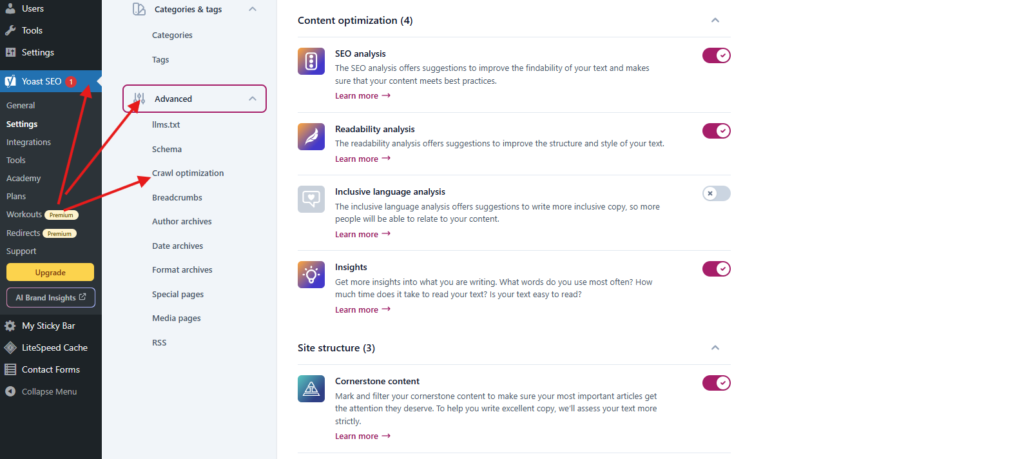
Screenshot collage of Yoast SEO crawl optimization settings panel with recommended toggles highlighted for better crawling and performance in 2026
Digital Marketing

Yoast SEO Crawl Optimization Settings

Yoast SEO Crawl Optimization Settings: Which Ones Should You Actually Turn On 📅 Published: March 30, 2026 ⏱ 8 min read 👤 For: Digital Marketers, Business Owners, SEO Professionals Look, I get it. You set up Yoast SEO, tweaked your titles and meta descriptions, and figured you were done. But here’s the thing those crawl optimization settings hiding in the Advanced tab? They’re the unsung heroes that actually make your site faster, cleaner, and way friendlier to Google. I’ve been in the trenches optimizing WordPress sites for over 15 years now. From one-page freelancer portfolios to monster e-commerce stores with 40,000+ products, I’ve flipped these exact toggles on hundreds of sites. And every single time the sites that get this right see fewer junk URLs in Google Search Console, quicker indexing, and a noticeable drop in server load. In 2026, with AI bots crawling everything in sight, these settings aren’t just nice-to-haves they’re essential if you want to stay ahead. The crazy part? Most of these changes take literally two minutes and won’t hurt your rankings one bit. They just stop search engines from wasting time on stuff you don’t need. Let me break it all down for you, section by section, exactly like it appears in Yoast. I’ll tell you what each toggle does, why it matters, and most importantly whether you should flip it on. Why These Yoast Crawl Settings Matter More Than Ever Right Now Google has a limited crawl budget for every site. On small blogs it’s not a huge deal, but once you grow or start getting hit by AI scrapers, every wasted request hurts. I saw this firsthand last year with a client who ran a popular recipe blog. Their site had ballooned to about 8,000 pages, and Google Search Console showed they were crawling tons of useless feeds and search pages. After we cleaned things up with these Yoast settings, their important recipe pages started getting recrawled every few days instead of every few weeks. Organic traffic jumped 28% in two months. That’s the kind of real-world difference I’m talking about. These tools simply tell Google: “Skip the junk, focus on my good stuff.” And yes, they even make your site a little greener by burning less electricity on pointless crawls. The Fastest Wins: Clean Up All That Unwanted Metadata WordPress is kind of a pack rat it loves stuffing your page headers with links and tags from 2000s-era features. Each one adds a few bytes and gives crawlers extra work for zero benefit. Here’s my no-BS take on every toggle in this section: Remove shortlinks → Flip it on. Those ugly ?p=123 links are ancient history. Remove REST API links → On. Your API still works perfectly behind the scenes. Remove RSD / WLW links → On. (WLW? That thing hasn’t been updated since flip phones were cool.) Remove oEmbed links → On. Embedding still works great. Remove generator tag → On. Hiding your exact WordPress version is just smart security. Pingback HTTP header → On. Pingbacks are basically open invitations for spam these days. Remove powered by HTTP header → On. Same security boost, less clutter. I turn every single one of these on for literally every client. One travel blog I worked with dropped almost 4 KB per page just from this section alone. Tiny change, huge cumulative win. Stop Wasting Crawl Budget on Useless Feeds WordPress auto-generates RSS feeds for practically everything posts, comments, authors, categories, you name it. Most of them do nothing useful in 2026. My simple rule: Remove global feed → Leave off only if you still love RSS readers or newsletter tools. Otherwise, turn it on. Remove global comment feeds and post comments feeds → Always on. Comment spam is still a nightmare. Remove authors, post type, category, tag, and custom taxonomy feeds → On for almost every site. Remove search results feeds → On. These are pure spam bait. Remove Atom / RDF feeds → On. Nobody uses these old formats anymore. Unless you’re running a podcast empire, you can safely kill 90% of these. I’ve done it on news sites, food blogs, and coaching websites never once had a reader complain. Tiny Resources That Add Up: Emoji Scripts and JSON API Two quick toggles that punch above their weight: Remove emoji scripts → On. Modern browsers handle emojis just fine without extra JavaScript. Remove WP-JSON API → On for most sites. It simply adds a disallow rule in robots.txt so bots stop hammering your API endpoints. These are the kind of tiny optimizations that quietly shave milliseconds off every page load. Block the Bots That Don’t Deserve Your Bandwidth This section (some features are Premium) lets you politely tell certain crawlers to stay away. Here’s exactly what I recommend in 2026: Prevent Google AdsBot → Only turn on if you’re not running Google Ads. Prevent Google Gemini and Vertex AI bots → On. Zero effect on normal Google Search. Prevent OpenAI GPTBot → On if you don’t want your content feeding ChatGPT. Prevent Common Crawl CCBot → On. This one powers a ton of AI training data. After the recipe site client I mentioned earlier blocked these AI bots, their hosting bill dropped noticeably and their site felt snappier. No traffic loss at all. Shut Down Internal Search Spam for Good Your site’s own search pages (?s=keyword) are a favorite target for spammers. Yoast gives you three smart fixes: Filter search terms (plus the sub-settings) → Turn on. Set max characters to around 40–50, block emojis, and catch common spam patterns. Redirect pretty URLs to raw format → On. Cleans up messy /search/cats/ links. Prevent crawling of internal search URLs → Usually leave off unless spam is out of control. I enable the first two on every single site. Cheap insurance that pays off. Advanced URL Cleanup: Only Touch These If You Know What You’re Doing These are the expert-level 301 redirects for query strings: Optimize Google Analytics utm tracking parameters →

Google March 2026 Core Update - Complete Guide: What happened, who won, who lost, and how to recover your rankings
Digital Marketing

Google March 2026 Core Update

GOOGLE MARCH 2026 CORE UPDATE: WHAT REALLY HAPPENED AND HOW TO GET YOUR RANKINGS BACK 📅 Published: March 30, 2026 ⏱ 12 min read 👤 For: Digital Marketers, Business Owners, SEO Professionals If your organic traffic fell off a cliff sometime after March 27, 2026, you’re not imagining it. Google rolled out its March 2026 core update — and honestly, it hit harder than most people expected. I’ve been tracking algorithm updates for years, and here’s the thing: this one feels different. It’s not just the usual reshuffling of positions. Google is fundamentally re-evaluating what “quality content” means in an AI-dominated search world. In this guide, I’ll walk you through exactly what happened, who won, who lost, and — most importantly — what you can actually do about it right now. QUICK FACTS Update launched: March 27, 2026 at 2:00 AM PT  |  Rollout window: Up to 2 weeks  |  Type: Broad core update (all regions, all languages) 55% of monitored sites saw ranking movement 9.5/10 peak volatility on SEMrush Sensor ~35% traffic dropreported by hardest-hit sites 2 wks expected full rollout window WHAT IS THE GOOGLE MARCH 2026 CORE UPDATE, EXACTLY? Google’s core updates aren’t penalties. A drop in rankings after a core update doesn’t mean your site did something wrong. It means Google’s algorithm re-evaluated your content against a new, higher standard of quality. Think of it like this: imagine Google’s ranking system as a panel of expert judges. A core update is when Google hands those judges a new, more detailed scorecard. The March 2026 core update launched on March 27, 2026 — two days after a separate spam update completed in under 20 hours. That back-to-back timing was unusual and clearly intentional. Google’s official statement Google described this as “a regular update designed to better surface relevant, satisfying content for searchers from all types of sites.” They added: there’s nothing new creators need to do — as long as you’ve been making satisfying content meant for people. Regular. Sure. But volatility scores hit 9.5 out of 10 on SEMrush Sensor. This was anything but a quiet tweak. What Google’s Algorithm Is Actually Looking For in 2026 Google has been quietly but aggressively shifting toward rewarding “information gain” — content that adds something new to the conversation, not just rehashing what’s already out there. If your content could have been written by anyone who spent 20 minutes on Google, you’re very vulnerable. The EEAT signals Google is doubling down on E-E-A-T stands for Experience, Expertise, Authoritativeness, and Trustworthiness. This update clearly made it a heavier ranking factor. A study of pages that gained visibility after this update found that 72% now display detailed author credentials — up from 58% pre-update. Experience: First-hand accounts, original research, real case studies Expertise: Identifiable authors with credentials Authoritativeness: Deep topical coverage in your niche Trustworthiness: Secure site, transparent policies, cited sources The AI content crackdown — it’s real Mass-generated AI content took a serious hit. Not because Google penalizes AI-written content specifically, but because AI-generated content that lacks human insight, original perspective, or genuine expertise is exactly what Google’s “helpful content” signals are designed to filter out. Sites that published hundreds of AI-generated articles with no human editorial layer were hit hardest. Google Algorithm Update Winners: Who Climbed the Rankings?  Notice the pattern? These aren’t sites with the most keywords or the mostbacklinks. They’re sites where a real human with real knowledge clearly satdown and wrote something worth reading. Winner Profile What They Did Right Avg. Visibility Gain Industry niche publications Original research, expert bylines, deep topical coverage +22% E-commerce with detailed reviews First-hand product testing, user-generated content, real images +18% Local service businesses Strong local authority, genuine reviews, precise location signals +15% Health/finance sites with credentials Licensed author credentials, medical/financial disclaimers, cited sources +20% Long-running domain authorities Consistent publishing (2+ years), topical depth, strong backlink profiles +12% Not everyone got wrecked by this update. Plenty of sites saw significant gains — and their common traits tell us a lot about where Google is headed. Who Got Hit: The Losers of the March 2026 Google Core Update Not all keywords are created equal. When you evaluate potential keywords, you need to look at several metrics to determine which ones are worth targeting. The losses were concentrated and predictable — if you know what Google hasbeen building toward for the last two years. Sites That Saw the Biggest Ranking Drops AI content farms — High-volume, low-insight article mills Affiliate sites with generic product reviews — No original testing, just repackaged specs Parasitic SEO pages — Unrelated high-DA sites creating SEO sections outside their expertise Sites chasing broad keyword volume — “Spray and pray” strategies without topical authority Pages with no visible authorship — Especially on YMYL topics Warning: If your site dropped and you were also hit by the March 2026 spam update (completed March 25), separate the two. Use Google Search Console date filters to see which drop came first. The AI Search Factor: Why This Update Hits Differently in 2026 This update doesn’t just affect traditional blue-link rankings. It affects whether your content gets cited in Google AI Overviews and Google’s AI Mode. In 2026, a huge percentage of searches never result in a click. Google’s AI Overviews synthesize answers directly on the page — pulling only from trusted sources. The March 2026 core update recalibrated which sources Google’s AI trusts enough to cite. What Generative Engine Optimization (GEO) Means for Your Content GEO is the practice of optimizing for AI-driven search. The good news? It overlaps heavily with what the core update rewards: Clear, direct answers to specific questions Structured content with logical heading hierarchies Entity-rich writing (named experts, specific stats, real organizations) Original data and research that AI can reference Content that is demonstrably current and regularly updated How to Recover From the March 2026 Core Update: A Real Action Plan Okay. This is the part you actually came for. Let’s be practical. First: DON’T PANIC-PUBLISH. One

Digital Marketing

LLM.TXT For Seo Guide

LLMs.txt for SEO: The Ultimate Guide (2026) yourdigihelp.com — digital marketing guides for real humans Ultimate Guide · 2026 Edition LLMs.txt for SEO: The Complete Guide From Zero to Ranking in the Age of AI Search What it is, why Google and ChatGPT care about it, and exactly how you create, validate, and deploy your own llms.txt — step by step. 📅 Updated: March 2026 ⏱ 18 min read 👤 Beginner → Advanced 🎯 4,200+ words 📋 Table of Contents What Is llms.txt — and Why Should You Care? llms.txt vs. robots.txt vs. sitemap.xml Why llms.txt Matters for SEO in 2026 What Can You Actually Do with llms.txt? LLM.txt Examples — What Good Looks Like How to Create Your llms.txt (Free Methods + Generator Tools) llms.txt for WordPress — Yoast, Rank Math & Plugins How to Validate Your llms.txt File The llms-txt Directory — Get Listed Advanced llms.txt Strategy for Power Users Dos and Don’ts — Common Mistakes to Avoid FAQ 1. What Is llms.txt — and Why Should You Care? Here’s the thing. The web has a new kind of visitor now. It’s not a person. It’s not even Google’s old-school crawler. It’s an AI — ChatGPT, Claude, Gemini, Perplexity — and it reads your site very differently from how a human does. Enter llms.txt. In plain English? It’s a simple plain-text file you place at the root of your website — yoursite.com/llms.txt — that tells large language models (LLMs) what your site is about, which pages matter most, and how you’d like your content to be understood and used. Think of it as a welcome note you leave out for the AI reading your site at 3am. The format was proposed in late 2024 by Jeremy Howard (of fast.ai fame) and has quickly caught fire across the SEO and tech world. By early 2026, some of the biggest sites on the internet — Anthropic, Cloudflare, GitHub, and hundreds of others — already have one deployed. 💡 Quick Definition: An llms.txt file is a Markdown-formatted text document at your domain root that gives AI language models structured, curated context about your website — your purpose, your key pages, and the content you most want them to understand. Why should you care? Because AI-driven search is no longer coming. It’s here. Perplexity is sending referral traffic. ChatGPT’s browsing feature cites sources. Google’s AI Overviews summarize your content before users even see your link. If an LLM doesn’t understand your site clearly, you won’t get cited, summarized, or recommended. It’s that simple. And unlike robots.txt — which is mostly about blocking — llms.txt is about inviting. It’s proactive. It’s you saying: “Here’s who I am, here’s what I know, here’s where my best stuff lives.” The Problem llms.txt Solves LLMs are smart, but they’re not magic. When an AI model crawls your site or processes your content, it has to make sense of hundreds — sometimes thousands — of pages. Navigation menus, footers, cookie banners, legal disclaimers, outdated blog posts from 2011… it all gets scraped together. The result? The AI might form a muddy, incomplete picture of who you are. It might summarize your site based on a mediocre page instead of your flagship content. It might completely miss your most important work. An llms.txt file solves this by giving AI models a clean, structured overview they can trust. You control the narrative. You highlight what matters. 2. llms.txt vs. robots.txt vs. sitemap.xml — What’s the Difference? I get this question constantly. Let’s kill the confusion once and for all. File Purpose Who Reads It Format Action robots.txt Crawl permissions All crawlers (Google, Bing, etc.) Plain text Allow / Disallow pages sitemap.xml Page discovery Search engine crawlers XML Lists all URLs llms.txt AI context + guidance LLMs and AI agents Markdown (.md) Explains content & priorities They’re not competing — they’re complementary. Your robots.txt controls access, your sitemap handles discovery, and your llms.txt manages understanding. All three should be in your toolkit in 2026. 📌 Key insight: llms.txt doesn’t replace robots.txt. If you want to block AI crawlers entirely, you still do that in robots.txt (using directives like User-agent: GPTBot). llms.txt is for when you want LLMs to engage with your content — but on your terms. 3. Why llms.txt Matters for SEO in 2026 — The Honest Truth Let’s be real. Google hasn’t officially said “we read llms.txt and reward you for it.” There’s no confirmed ranking signal. Anyone telling you otherwise is overselling. But here’s what is true — and it matters a lot. AI Search Is Your New Referral Traffic A 2025 study by SparkToro found that AI-generated answers (across ChatGPT, Perplexity, and Google AI Overviews) are now responsible for a meaningful and growing percentage of top-of-funnel awareness for informational content. Sites that get cited in AI answers see brand lift, direct traffic spikes, and — yes — indirect SEO benefits. When an LLM accurately understands your site via llms.txt, it’s more likely to: Cite your specific URLs in answers Accurately describe what you do (reducing misrepresentation) Surface your content for relevant AI-generated summaries Pass AI agents to your most useful pages first E-E-A-T in the Age of Generative Search Google’s E-E-A-T framework (Experience, Expertise, Authoritativeness, Trustworthiness) is more relevant than ever. And llms.txt is a natural vehicle for it. When you explicitly state your credentials, your core topics, and your most authoritative content, you’re essentially writing an E-E-A-T brief for every AI that visits. Think about it. If ChatGPT is writing an answer about digital marketing strategy and it has read your llms.txt — which clearly states you’re a 10-year digital marketing expert with case studies, tutorials, and a vetted resource library — you’re going to get cited ahead of generic content farms. LLMs.txt and Google’s Helpful Content System Google’s Helpful Content guidelines reward pages that are created for humans first. llms.txt, ironically, supports this by helping AI correctly represent your human-first content. It’s not about gaming the system — it’s about reducing the signal

Bold colorful graphic with title "8 Robots.txt Mistakes Killing Your SEO" on a clean grid background, perfect for WordPress SEO guide
Digital Marketing

Common Robots.txt Mistakes Guide

The Robots.txt Mistakes That Are Silently Killing Your SEO (I Learned Some of These the Hard Way) I want to tell you about a Thursday afternoon that still makes me cringe a little. A client — a mid-sized e-commerce brand selling handmade leather goods — had been live for six weeks. Rankings were flat. Organic traffic was essentially zero. We’d done everything right: solid keyword research, clean site structure, decent backlinks from niche directories. The product pages were genuinely good. I opened their robots.txt on a whim. Two lines. That’s all that was there.    User-agent: * Disallow: / Six weeks. Their developer had blocked the entire site during staging, launched it to the world, and never changed those two lines. Googlebot had been politely knocking on the door for a month and a half, and those two lines had been telling it to go away. We fixed it in under three minutes. Their impressions in Google Search Console started climbing within a week. Here’s what haunts me about that story: they had no idea. No error message. No warning. No notification of any kind. Their robots.txt file was quietly, invisibly sabotaging everything — and it would have kept doing so indefinitely if we hadn’t caught it by accident. That’s what makes robots.txt so dangerous. When it’s wrong, it doesn’t yell at you. It just… doesn’t work. So let’s fix that. This guide covers every major robots.txt mistake I’ve seen in the wild — not just in theory, but from real audits, real sites, and real SEO disasters that were 100% preventable. First, a 60-Second Explanation of What Robots.txt Actually Does If you’re already confident on the basics, skip ahead. But if there’s even a small chance you’re fuzzy on this, stay with me for a minute — because the mistakes make a lot more sense once the foundation is clear. A robots.txt file is a plain text file that lives at the root of your website — for example, yoursite.com/robots.txt. It uses a straightforward set of directives to communicate with search engine crawlers like Googlebot and Bingbot, telling them which parts of your site they can access and which parts to leave alone. The basic structure of a robots.txt file A clean, working robots.txt looks like this:     User-agent: * Disallow: /wp-admin/ Allow: /wp-admin/admin-ajax.php Sitemap: https://yoursite.com/sitemap.xml User-agent: * means “this rule applies to all crawlers” Disallow and Allow control which URLs bots can visit Sitemap points crawlers to all your important pages The one distinction that changes everything Robots.txt controls crawling  not indexing. These are two completely different things, and confusing them is one of the most common mistakes in the list below. Keep that in your head as you read on. 8 Robots.txt Mistakes Killing Your SEO #1 Disallow All Blocks your entire site from Google. #2 Blocking CSS/JS Google sees a broken version of your site. #3 Disallow ≠ Noindex Pages still appear in search results. #4 Syntax Errors One small mistake can break everything. #5 Missing Sitemap You’re not guiding Google properly. #6 Admin-Ajax Block Breaks frontend functionality. #7 Bot-Specific Rules Wrong targeting = lost traffic. #8 Migration Issues Old rules silently block new pages. Mistake #1: The “Disallow All” Trap That Takes Sites Off Google Completely We already met this one in the opening story, but it deserves its own section because it’s shockingly common. The Disallow: / instruction — paired with User-agent: * — tells every crawler on the internet to stay away from every single page on your site. It’s the nuclear option. And it’s exactly what you want during development, when you’re building something that shouldn’t appear in search results yet. The problem is the “yet” part. Developers set this up, launch the site, and forget to undo it.     User-agent: * Disallow: / If your live site has these exact two lines, stop reading right now and go fix it. Why developers leave this in place after launch It’s not negligence — it’s workflow. Most developers use a staging block to prevent Google from indexing an unfinished site, which is smart. But launch-day checklists often skip the robots.txt step entirely. One missed item, weeks of invisible damage. How to fix a “disallow all” robots.txt Change your file to this:     User-agent: * Disallow: An empty Disallow value means “allow everything.” Or remove the line entirely. Then open Google Search Console, submit your sitemap, and request indexing for your most important pages to speed up recovery. Add “verify robots.txt is not blocking everything” to your pre-launch checklist permanently. Tattoo it somewhere if that’s what it takes. Mistake #2: Blocking CSS and JavaScript Files (and Showing Google a Broken Version of Your Site) Here’s something that surprises a lot of people: Google doesn’t just read text. It renders your entire page — CSS, JavaScript, fonts, images — exactly the way a browser would. If your robots.txt is blocking those resource files, Googlebot is experiencing a broken, half-functional version of your site. And broken sites don’t rank. Why blocking resources used to be recommended Up until around 2014, blocking CSS and JS was actually standard advice. The reasoning made sense then — why waste Googlebot’s crawl budget on stylesheet files? But once Google started fully rendering pages, blocking resources became a liability rather than an efficiency gain. Google’s own documentation is explicit: preventing Googlebot from crawling CSS and JavaScript will likely affect how well their algorithms render and index your content. That’s not a maybe. That’s a direct statement from the source. Signs that resource blocking is hurting your site Your site looks perfectly fine to users, but Google shows odd snippets or missing content in search results The URL Inspection Tool in Google Search Console shows a very different rendered version than what users see Pages aren’t getting indexed despite being technically sound in every other way How to fix resource blocking in robots.txt Remove any Disallow directives targeting folders like /assets/, /css/, /js/, or /fonts/. Then run the

Digital Marketing

Google Ads Transparency Center Guide

Google Ads Transparency Center Complete Guide for Marketers and Users Introduction to Ads Transparency Center In today’s digital ecosystem, advertisements are everywhere. From search engines to video platforms, ads influence user decisions at every step. But one major question always remains in the minds of users and marketers alike who is actually behind these ads. This is where the Google Ads Transparency Center plays a crucial role. The ads transparency center is a powerful initiative by Google that allows anyone to explore advertisements running across its platforms. It brings clarity, accountability, and trust into the advertising ecosystem. Whether you are a digital marketer, business owner, or a curious user, understanding this platform can give you a significant advantage. This guide will help you understand everything about the google ads transparency center, how it works, why it matters, and how you can use it effectively for your growth. What is Google Ads Transparency Center The google ads transparency center is a public database where you can search and view ads running across Google platforms. This includes ads from: Google Search YouTube Google Display Network Gmail promotions Google Maps Google Play Google Shopping The transparency center google allows you to see: Who is running the ad What the ad looks like Where the ad is shown When the ad was active This level of openness was not common in digital advertising earlier. Today, it is becoming a standard. The Real Purpose Behind Google Transparency Center At first glance, it looks like a simple ad library. But the purpose goes much deeper. The google transparency center was built around four core ideas. Building trust Users are more likely to trust ads when they know who is behind them. Increasing accountability Advertisers now need to verify their identity. This reduces fake and misleading ads. Supporting global regulations Laws like the Digital Services Act in Europe require platforms to maintain ad transparency. Creating an open ecosystem Researchers, journalists, and marketers can study ad behavior without restrictions. Getting Started: Google’s Recommended Steps Key Features of Ads Transparency Center Google Let us break down what you actually get inside the ads transparency center google. Advertiser identity details You can see: Verified advertiser name Country or location Payer name The payer name feature was introduced recently. It shows who is actually funding the ads. This is important when agencies run campaigns for clients. Ad creatives You can view: Search ad text Display banners YouTube video ads This makes the platform similar to a google ads library, but more reliable and official. Ad history timeline You can track: First time the ad appeared Last time it was shown This helps you understand how long a campaign has been running. Geographic targeting You can see where ads were shown at a country level. Important Update About Payer Name One of the biggest updates in the google ads transparency center came in 2025. Earlier, you could only see the advertiser name. Now you can also see the payer name. This means: If an agency runs ads for a brand, both names may appear If a company uses multiple entities, you can identify the real funding source For marketers, this reveals deeper insights into how businesses structure their campaigns. Google Ads Transparency Report vs Transparency Center Many people confuse the Google ads transparency report with the main transparency center. Here is the difference in simple terms. Ads transparency center Covers all types of ads Shows creatives and advertiser details Does not show spend or impressions Google ads transparency report Focuses on political and election ads Shows impression ranges Shows spend ranges Includes targeting details If you are researching general advertising, the transparency center is what you need. How to Use Google Ads Transparency Center Step by Step This is where things get practical. Step 1 Start with a domain search Instead of typing a brand name, search using the website URL. This gives more accurate results. Step 2 Apply filters Use filters to narrow down results: Country Ad format Date range Step 3 Study ad creatives Look at: Headlines Visual style Call to action Step 4 Identify patterns Ask yourself: Which ads are repeated Which format is used most How long ads are running Long running ads usually indicate good performance. Why Some Ads Do Not Appear Immediately A common confusion is why new ads are not visible. The reason is simple. The google ads transparency center is not real time. There is usually a delay of: 24 to 72 hours So if a campaign just launched, you may need to wait before it appears. Ad Retention Timeline Explained Not all ads stay forever in the transparency center. Commercial ads Usually visible for a limited period which can range from around 30 days to a few months depending on filters. Political ads Stored for up to 7 years in many regions. This difference exists because of legal requirements. Why You Cannot Find Certain Advertisers There are multiple reasons behind this. Different legal name A brand might advertise under a registered company name instead of the brand name. Agency managed accounts Ads may appear under an agency name. No active campaigns If ads are not running, visibility may be limited. Domain mismatch Searching with the wrong keyword instead of domain can give no results. Why Some Ads Are Not Fully Visible Sometimes you find an ad but cannot view it completely. This happens due to: Policy violations If an ad breaks Google rules, its content may be hidden. Age restricted categories Ads related to alcohol or betting require sign in. Legal restrictions Certain countries have strict advertising laws. Why Sign In is Required for Some Ads Google requires sign in for specific categories. This is mainly for: Age verification Compliance with local laws If you are not signed in, these ads simply do not appear. A Step by Step Process for Keyword Research Now that you understand the basics, let us walk through a practical process you can use to build your

Scroll to Top