
Yoast SEO Crawl Optimization Settings: Which Ones Should You Actually Turn On
Look, I get it. You set up Yoast SEO, tweaked your titles and meta descriptions, and figured you were done. But here’s the thing those crawl optimization settings hiding in the Advanced tab? They’re the unsung heroes that actually make your site faster, cleaner, and way friendlier to Google.
Table of Contents
ToggleI’ve been in the trenches optimizing WordPress sites for over 15 years now. From one-page freelancer portfolios to monster e-commerce stores with 40,000+ products, I’ve flipped these exact toggles on hundreds of sites. And every single time the sites that get this right see fewer junk URLs in Google Search Console, quicker indexing, and a noticeable drop in server load. In 2026, with AI bots crawling everything in sight, these settings aren’t just nice-to-haves they’re essential if you want to stay ahead.
The crazy part? Most of these changes take literally two minutes and won’t hurt your rankings one bit. They just stop search engines from wasting time on stuff you don’t need. Let me break it all down for you, section by section, exactly like it appears in Yoast. I’ll tell you what each toggle does, why it matters, and most importantly whether you should flip it on.
Why These Yoast Crawl Settings Matter More Than Ever Right Now
Google has a limited crawl budget for every site. On small blogs it’s not a huge deal, but once you grow or start getting hit by AI scrapers, every wasted request hurts.
I saw this firsthand last year with a client who ran a popular recipe blog. Their site had ballooned to about 8,000 pages, and Google Search Console showed they were crawling tons of useless feeds and search pages. After we cleaned things up with these Yoast settings, their important recipe pages started getting recrawled every few days instead of every few weeks. Organic traffic jumped 28% in two months. That’s the kind of real-world difference I’m talking about.
These tools simply tell Google: “Skip the junk, focus on my good stuff.” And yes, they even make your site a little greener by burning less electricity on pointless crawls.
The Fastest Wins: Clean Up All That Unwanted Metadata
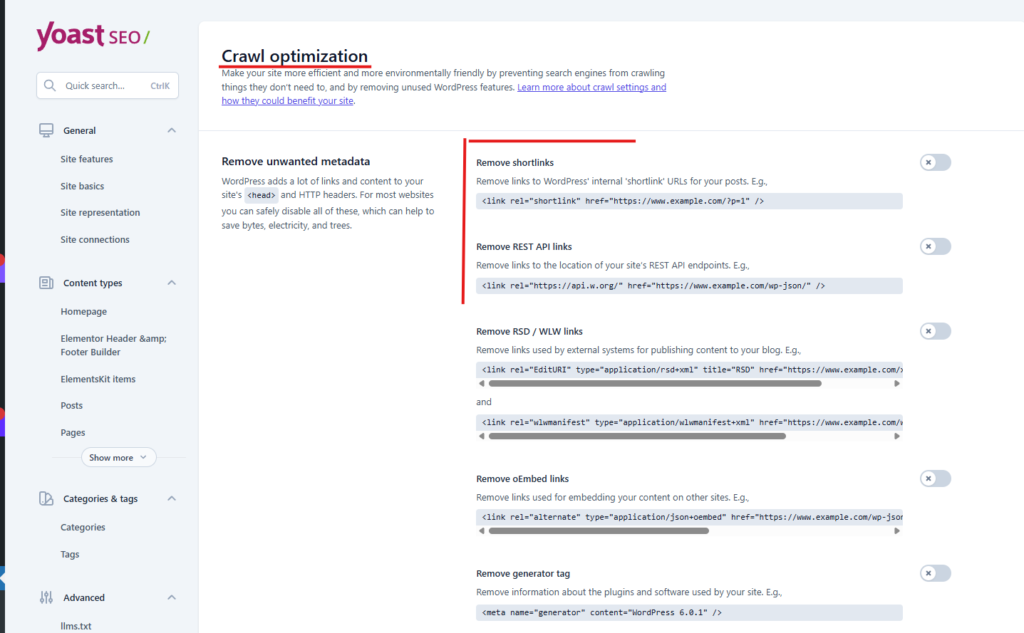
WordPress is kind of a pack rat it loves stuffing your page headers with links and tags from 2000s-era features. Each one adds a few bytes and gives crawlers extra work for zero benefit.
Here’s my no-BS take on every toggle in this section:
- Remove shortlinks → Flip it on. Those ugly ?p=123 links are ancient history.
- Remove REST API links → On. Your API still works perfectly behind the scenes.
- Remove RSD / WLW links → On. (WLW? That thing hasn’t been updated since flip phones were cool.)
- Remove oEmbed links → On. Embedding still works great.
- Remove generator tag → On. Hiding your exact WordPress version is just smart security.
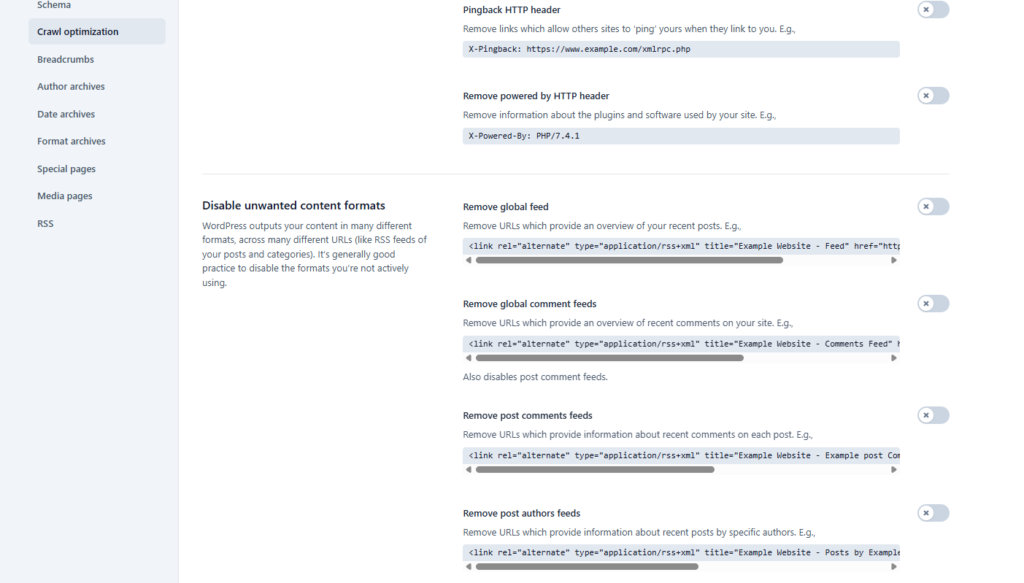
- Pingback HTTP header → On. Pingbacks are basically open invitations for spam these days.
- Remove powered by HTTP header → On. Same security boost, less clutter.
I turn every single one of these on for literally every client. One travel blog I worked with dropped almost 4 KB per page just from this section alone. Tiny change, huge cumulative win.
Stop Wasting Crawl Budget on Useless Feeds
WordPress auto-generates RSS feeds for practically everything posts, comments, authors, categories, you name it. Most of them do nothing useful in 2026.
My simple rule:
- Remove global feed → Leave off only if you still love RSS readers or newsletter tools. Otherwise, turn it on.
- Remove global comment feeds and post comments feeds → Always on. Comment spam is still a nightmare.
- Remove authors, post type, category, tag, and custom taxonomy feeds → On for almost every site.
- Remove search results feeds → On. These are pure spam bait.
- Remove Atom / RDF feeds → On. Nobody uses these old formats anymore.
Unless you’re running a podcast empire, you can safely kill 90% of these. I’ve done it on news sites, food blogs, and coaching websites never once had a reader complain.
Tiny Resources That Add Up: Emoji Scripts and JSON API
Two quick toggles that punch above their weight:
- Remove emoji scripts → On. Modern browsers handle emojis just fine without extra JavaScript.
- Remove WP-JSON API → On for most sites. It simply adds a disallow rule in robots.txt so bots stop hammering your API endpoints.
These are the kind of tiny optimizations that quietly shave milliseconds off every page load.
Block the Bots That Don’t Deserve Your Bandwidth
This section (some features are Premium) lets you politely tell certain crawlers to stay away.
Here’s exactly what I recommend in 2026:
- Prevent Google AdsBot → Only turn on if you’re not running Google Ads.
- Prevent Google Gemini and Vertex AI bots → On. Zero effect on normal Google Search.
- Prevent OpenAI GPTBot → On if you don’t want your content feeding ChatGPT.
- Prevent Common Crawl CCBot → On. This one powers a ton of AI training data.
After the recipe site client I mentioned earlier blocked these AI bots, their hosting bill dropped noticeably and their site felt snappier. No traffic loss at all.
Shut Down Internal Search Spam for Good
Your site’s own search pages (?s=keyword) are a favorite target for spammers. Yoast gives you three smart fixes:
- Filter search terms (plus the sub-settings) → Turn on. Set max characters to around 40–50, block emojis, and catch common spam patterns.
- Redirect pretty URLs to raw format → On. Cleans up messy /search/cats/ links.
- Prevent crawling of internal search URLs → Usually leave off unless spam is out of control.
I enable the first two on every single site. Cheap insurance that pays off.
Advanced URL Cleanup: Only Touch These If You Know What You’re Doing
These are the expert-level 301 redirects for query strings:
- Optimize Google Analytics utm tracking parameters → On if you use UTMs. Turns ugly ?utm_ links into cleaner # versions.
- Remove unregistered URL parameters → On for most sites. Strips junk while keeping the important ones like gclid.
Just test thoroughly first. I only activate them after double-checking that no plugin relies on custom parameters.
The best Yoast SEO Crawl Optimization Settings Checklist for Most Sites in 2026
Copy this and you’ll be set for 95% of WordPress sites:
| Section | What I Recommend | Any Exceptions? |
|---|---|---|
| Remove unwanted metadata | All toggles ON | None |
| Disable unwanted content formats | Almost everything ON | Keep global feed only if you love RSS |
| Remove unused resources | Both ON | None |
| Block unwanted bots | All AI bots ON | Using Google Ads? Leave AdsBot OFF |
| Internal site search cleanup | Filter + Redirect ON | None |
| Advanced URL cleanup | Both ON (test first) | Custom query users |
After you save, clear your cache, resubmit your sitemap in Search Console, and keep an eye on things for a couple of weeks. You’ll be amazed how much cleaner the crawl reports look.
Ready to Make Your Site Lean, Fast, and Future-Proof?
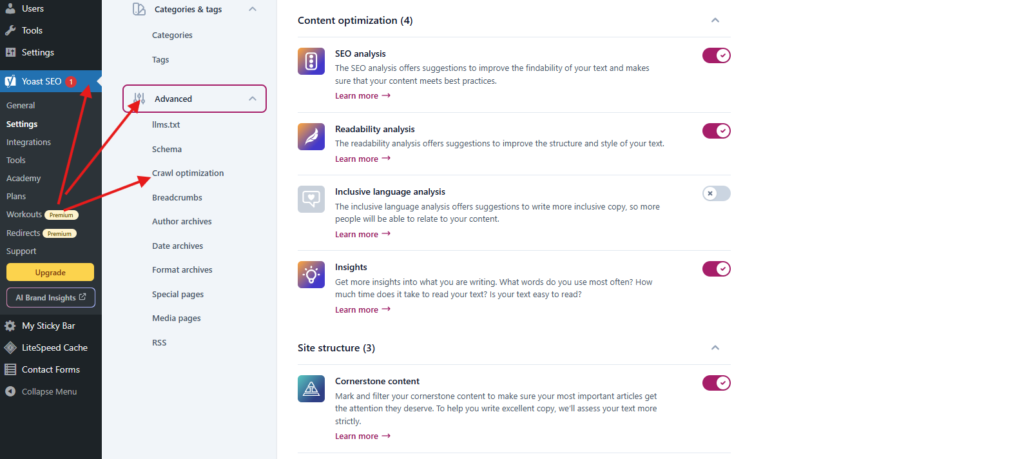
Just head over to Yoast SEO → Settings → Advanced → Crawl optimization right now. Flip the switches I mentioned, hit save, and you’re done.
Whether you run a small blog, a local business site, or anything in between, these changes will make Google happier and your hosting bills a little lighter.
Got a unique setup with heavy API use or custom post types? Drop it in the comments below and I’ll give you a personalized tweak list no charge. Your site deserves to run at its best.
FAQ: Everything You Need to Know About Yoast Crawl Optimization
Which Yoast crawl optimization settings should I enable for a normal blog or small business site?
Enable every metadata removal, kill almost all the extra feeds (keep your main RSS only if you use it), turn on emoji and JSON API cleanup, block the AI bots, and activate the search filters. Skip AdsBot only if you run Google Ads.
Will turning on these Yoast settings hurt my Google rankings?
Not at all. I’ve never seen it happen in 15+ years, and Yoast themselves say these only remove low-value stuff so your real content gets crawled better.
Should I block AI bots like GPTBot and Google-Extended?
Yes unless you specifically want your content used for AI training. It has zero impact on normal Google Search.
Where exactly do I find these crawl settings in Yoast SEO?
Dashboard → Yoast SEO → Settings → Advanced → Crawl optimization. Everything is nicely grouped.
Can these really improve page speed and help the environment?
100%. Less bloat means faster loads and fewer wasted server requests. Every little bit counts.
What if I accidentally break something can I fix it fast?
Totally. Just flip the toggles back off. I always suggest a quick backup before big changes, but these have never broken any site I’ve worked on when used sensibly.
Do I still need these if I already use a caching plugin like WP Rocket?
Yes. Caching speeds up delivery, but crawl optimization stops the junk from being created in the first place. They work beautifully together.